Watch: Freeze, Sign and Prove an Approved Document Package in Confluence (DORA Example)
The embedded player uses YouTube’s privacy-enhanced domain. You can also watch the video on YouTube.
Transcript
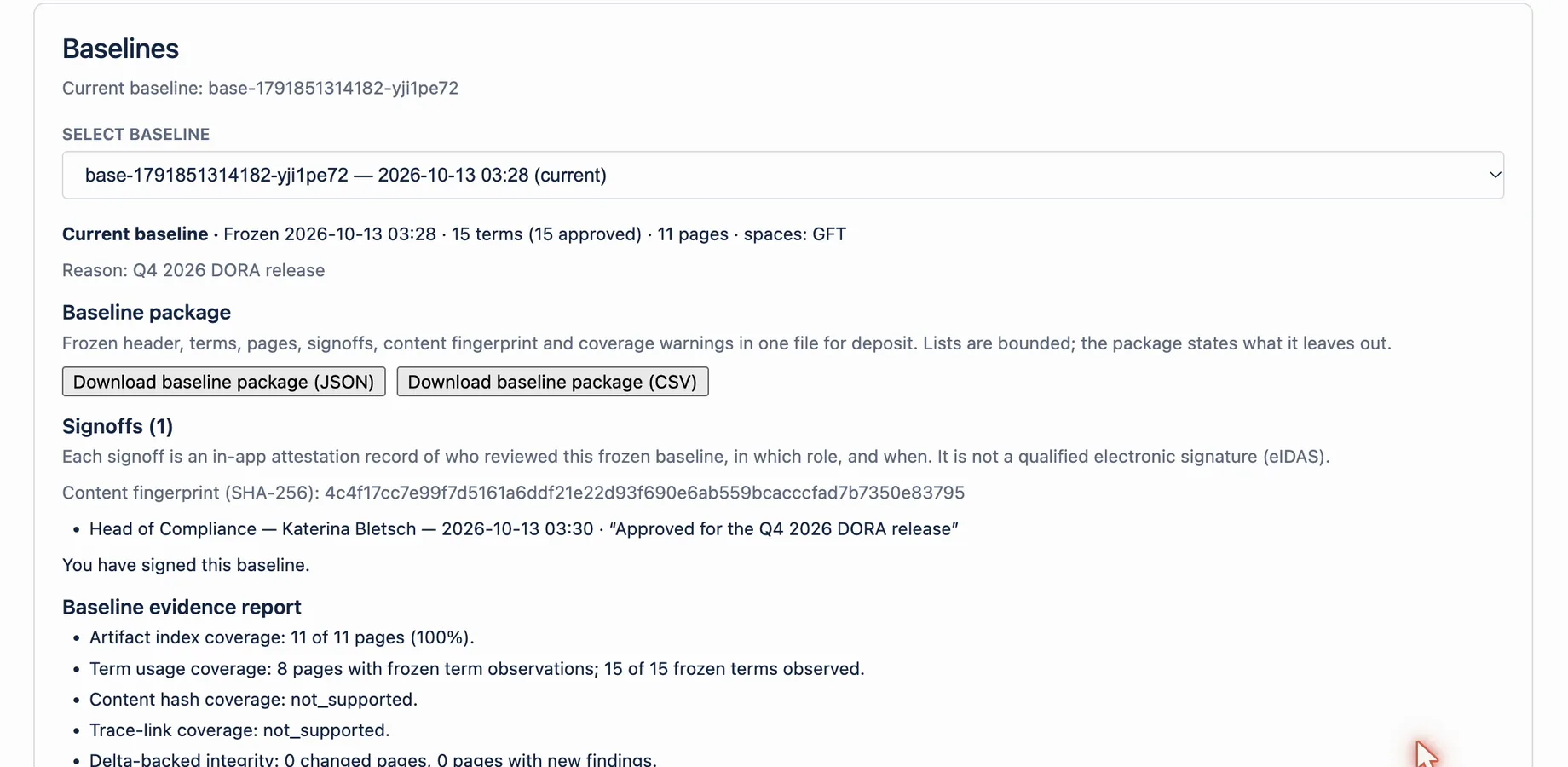
Release day. The auditor asks one simple question: what exactly did you approve? Which definitions, which documents, which versions? In most teams, answering that takes days of digging through pages and spreadsheets. In Compliance Glossary, you pick the spaces, write a reason, and create a terminology baseline. The app freezes every approved term with its meaning at that moment, together with every scanned page and its version. Now the accountable people sign it. Each sign-off records who signed, in which role, and when, bound to a fingerprint of the frozen content. For the auditor or your archive, download the baseline package as JSON or CSV: terms, meanings, pages, versions and sign-offs in one file. Six months later, the question has a one-click answer. Compliance Glossary for Confluence.
At a glance
| Input | Action | Output | Limit |
|---|---|---|---|
| Completed baseline | Enter Your role (required, up to 80 characters) | Signoff form | Signing opens only when the freeze is complete |
| Optional statement | Add a Statement (up to 500 characters), select Sign this baseline | Signoff with time and content fingerprint | One signoff per person per baseline |
| Several reviewers | Each signs in their own account | Signoffs list with role, name, date and statement | Up to 100 signoffs per baseline |
| Frozen content changed later | The app compares the stored fingerprint | Note: frozen content changed since this signature | The earlier signoff stays visible with that note |
How it works
- Open Apps → Compliance Glossary → Terminology Baseline and select the baseline.
- Wait until the freeze is complete. Until then the page shows: Signing opens when the baseline freeze is complete.
- Review Baseline evidence report and Changed since baseline.
- Under Signoffs, enter Your role, for example QA or Functional safety.
- Add an optional Statement, for example Approved for release 4.2.
- Select Sign this baseline. The page confirms: You have signed this baseline.
- Ask every other required reviewer to sign in their own account.
Example
Before release 4.2, the QA lead and the regulatory lead both review the frozen baseline. Each signs with their role and the statement Approved for release 4.2. The baseline package then carries both signoffs with times and the content fingerprint.
What this does not mean
A signoff records an in-app review. It is not a qualified or advanced electronic signature, a release approval in another system, or proof that the content is correct. Release approval and electronic signatures stay in your QMS or signature tool.
Related questions
Next step
Decide which roles must sign each baseline, then ask them to sign before you export the baseline package.
View on Atlassian Marketplace